The extension is on the Chrome Web Store. It works in Google Chrome on desktop.
Set it up
Add noctua to Chrome from the Chrome Web Store, then pin it to the toolbar.
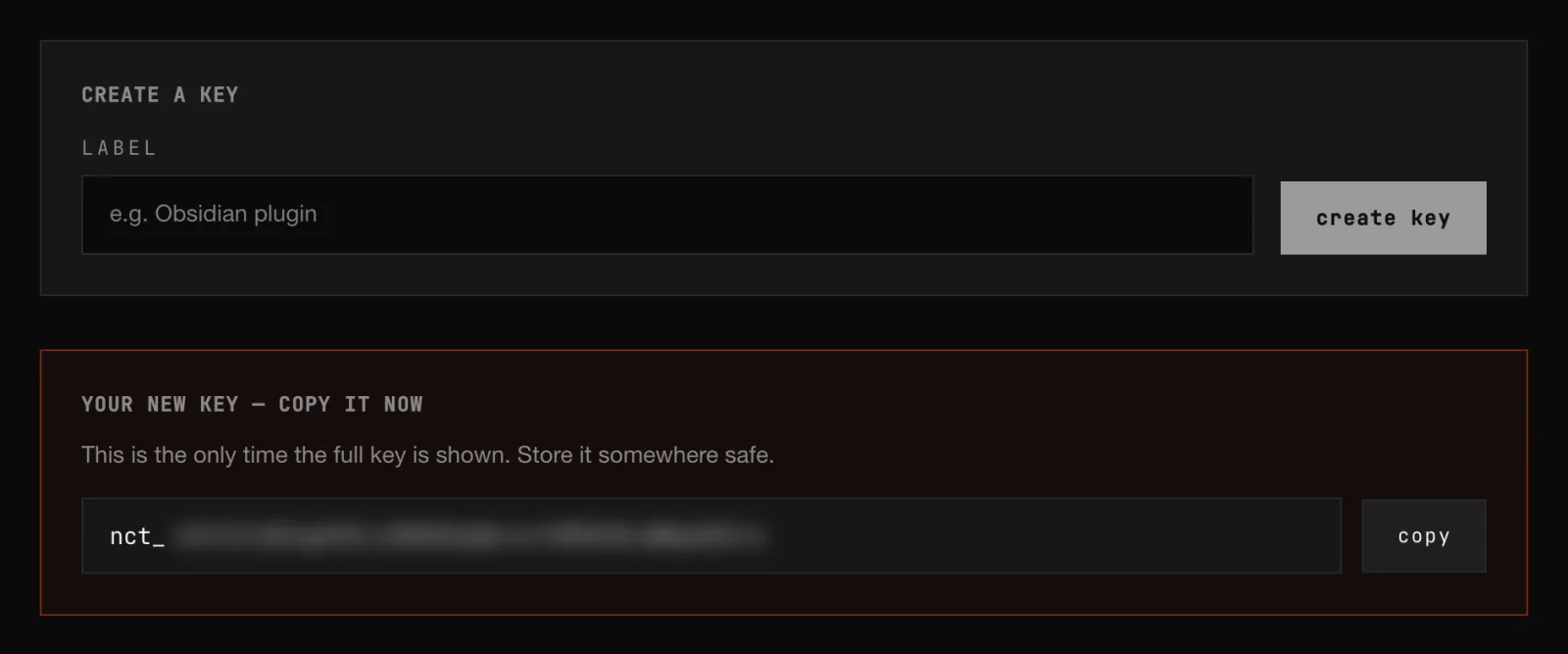
Create an API key. Sign in at cast.noctua.uno, open Settings → API keys and create a key labelled “Chrome”. Copy it straight away: it’s only shown once.
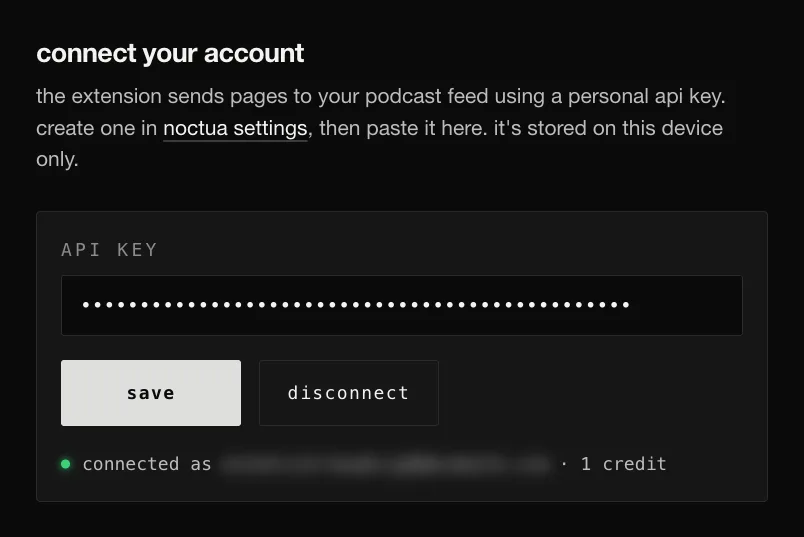
Connect. Click the noctua icon, choose settings, paste the key and click save.
Send a page
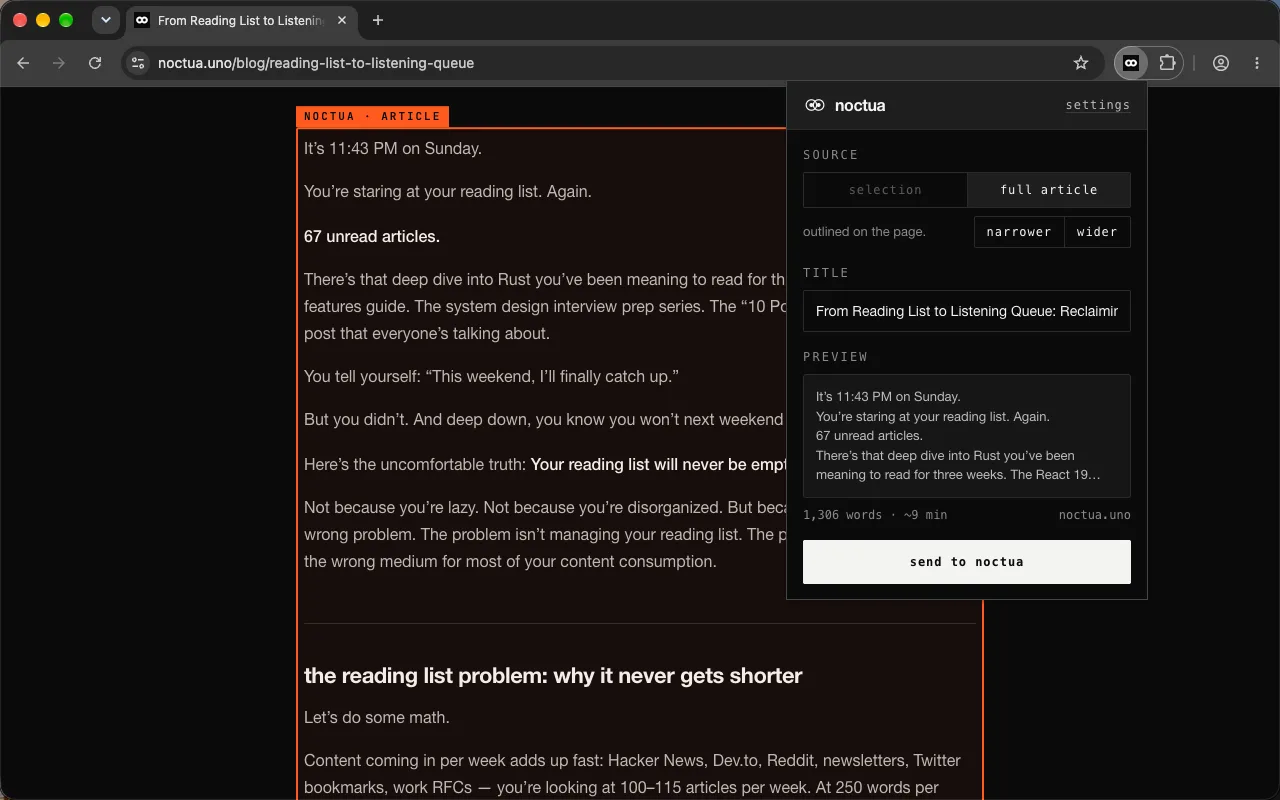
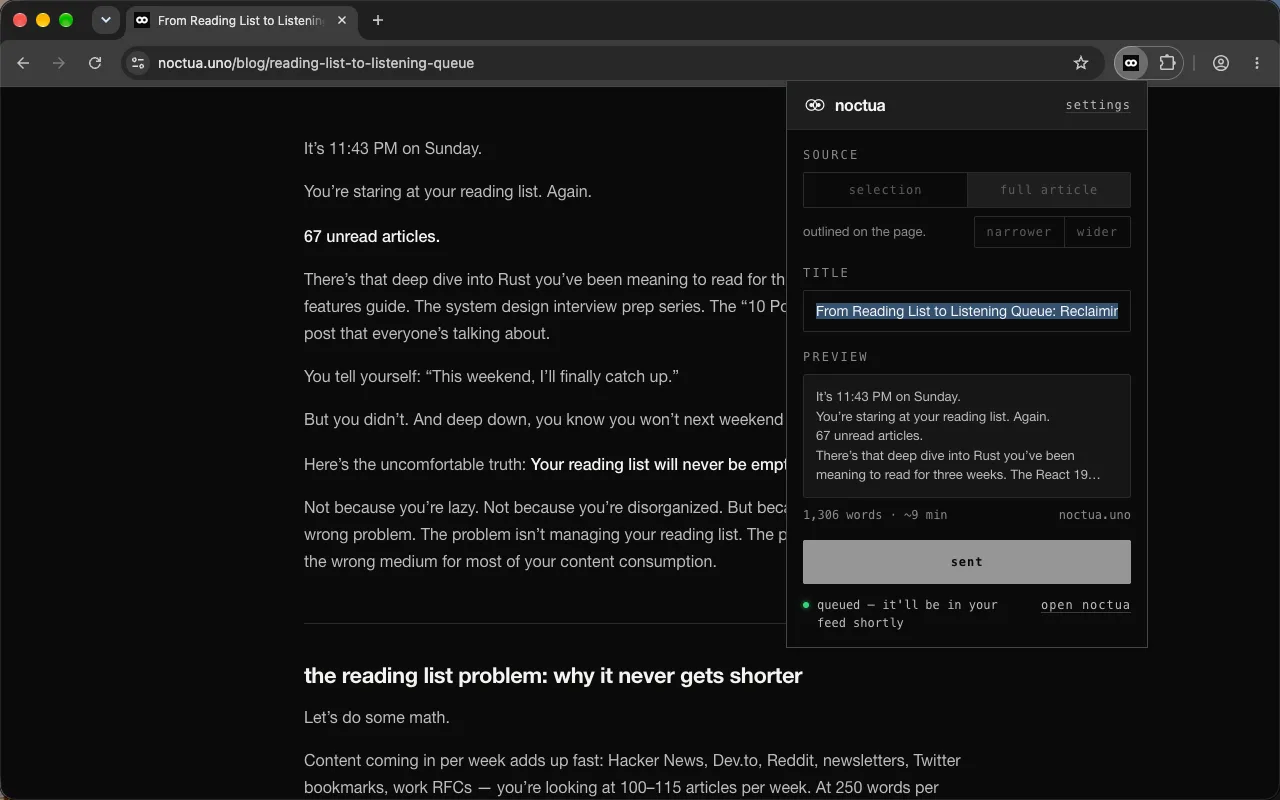
The full article: click the noctua icon. The extension outlines the part of the page it will send; use narrower and wider to adjust it, check the preview and the title, then click send to noctua.
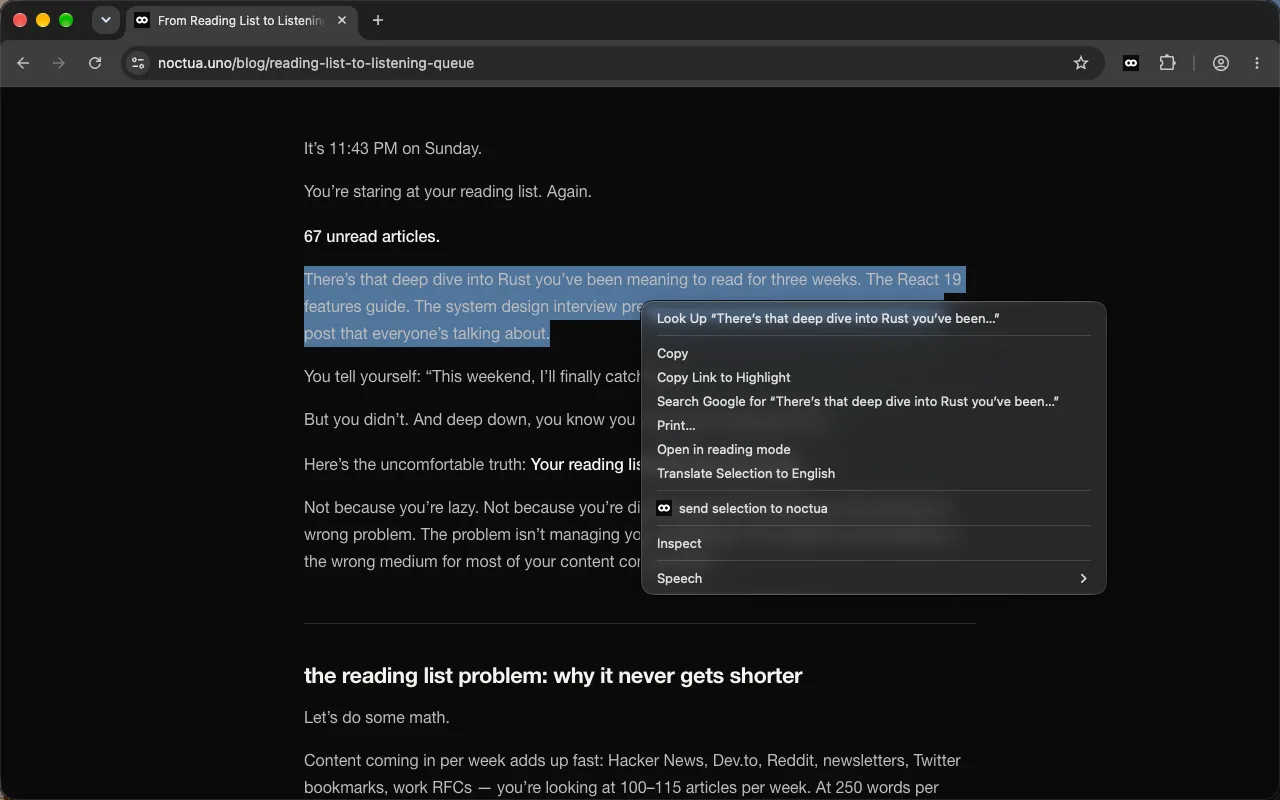
Just a passage: highlight it, right-click and choose send selection to noctua.
Once it’s sent, the popup confirms the edition is queued, with a link to open noctua.
Good to know
- One credit per send. A failed conversion refunds its credit automatically.
- It only reads the page when you ask. The extension acts on the tab you send from, and talks to noctua only to send it.
- Your key stays in Chrome’s local extension storage. Use disconnect in the settings to remove it.